Free Quote & Estimate Template for Word
By QuotApp Team · Updated October 17, 2026
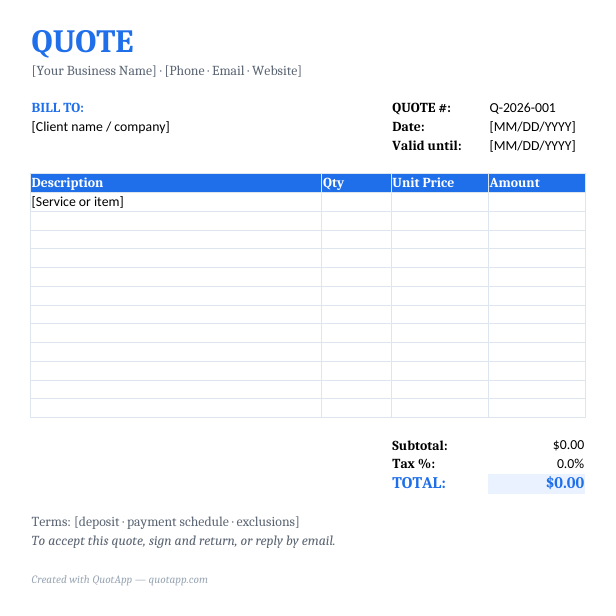
A Word quote template is a .docx file with the layout of a professional quote already built — header, client block, quote number and dates, an itemized table, totals, terms and a signature line — that you fill in and send as a PDF. Below you can download the quote and estimate versions for Microsoft Word (both open in Word for Windows, Mac, Word online and LibreOffice), see what each part is for, and follow the steps to customize, total and send it.
⬇ Free download — no sign-up
- Quote Template for Word (.docx)
- Estimate Template for Word (.docx) — Same layout with estimate wording
- Quote Template (PDF, print-and-fill)
- Also available in Excel
Create this quote online — free Browse all templates
Which Word quote template do you need?
| Variant | Use it when | What changes in the template |
|---|---|---|
| Quote template (.docx) | You can commit to a fixed price for a defined scope. | QUOTE heading, quote number, valid-until date, acceptance line. |
| Estimate template (.docx) | The scope or conditions are not final yet. | ESTIMATE heading, estimate number, a disclaimer that the final cost may vary and that changes over 10% are approved in writing. |
| Industry versions | You quote one trade repeatedly. | Pre-filled line items and a worked example for painting, cleaning, HVAC, landscaping, plumbing, construction, roofing, electrical, pressure washing, janitorial and handyman work. |
Filled-out Word quote example
This is what the template looks like completed for a real job — example of the Word template filled in for a small service job (window cleaning and gutter clearing). Prices are illustrative US figures; swap in your own rates.
Prepared for Jordan Avery, 220 Oak Street
| Description | Qty | Unit | Unit price | Amount |
|---|---|---|---|---|
| Exterior window cleaning — 24 windows, two stories | 24 | window | $9.00 | $216.00 |
| Interior window cleaning — 24 windows | 24 | window | $5.00 | $120.00 |
| Gutter clearing and downspout flush — 160 lin ft | 160 | lin ft | $1.25 | $200.00 |
Example only. Terms in the template: 50% deposit to schedule, balance on completion; quote valid 30 days; to accept, sign below or reply by email.
Rebuild this example in the free quote generator and export it as a PDF in under a minute.
What’s in the Word template
The .docx is a single US Letter page with margins set for printing, built from a few simple tables so it survives conversion to Google Docs, Pages and LibreOffice.
| Section | What it holds | What to change |
|---|---|---|
| Heading | QUOTE (or ESTIMATE) and a subtitle line | Leave the heading; delete the subtitle if you prefer |
| Business block | Name, street address, phone, email, website | Replace the bracketed text with your details; add your logo |
| Client / details table | Bill-to on the left; quote number, date, valid-until on the right | Client name and address; a sequential number such as Q-2026-001 |
| Line-item table | Description, Qty, Unit Price, Amount | One row per product, service or phase; add rows as needed |
| Totals | Subtotal, tax, total | Calculate and type the figures (see below) |
| Terms & notes | Deposit, payment schedule, exclusions, change handling | Your standard terms; one or two sentences each |
| Acceptance | “Accepted by” and date lines | Leave as is — it is how the client says yes |
How to fill in the Word quote template, step by step
- Download the file and save a master copy. Rename it (for example
Quote-MASTER.docx), put your business details and logo in, and never send the master — copy it for each job. - Add your logo. Click in the header area, Insert → Pictures → This Device, choose the file, set wrapping to In Line with Text and resize to about 1–1.5 inches wide.
- Fill in the client and details table. Client name, company, address and email on the left; quote number, today’s date and the valid-until date on the right. Thirty days is a common validity period.
- Add line items. Type each item in its own row: a description specific enough to settle disputes (“Two coats, walls only, living room 14×16”), the quantity, the unit price and the amount. To add a row, click in the last row and press Tab at the end of it, or right-click → Insert → Rows Below.
- Total it. Add the amounts for the subtotal, apply your tax rate if the work is taxable where you are, and type the total. If you want automatic math, use the Excel version or build the quote in the free quote generator and copy the numbers across.
- Write the terms. Deposit, when the balance is due, what is excluded and how changes are handled. Keep it to a few lines; long terms go on a second page.
- Save as PDF and send. File → Save As → PDF (Windows) or File → Save As → File Format: PDF (Mac). Name the file with the number and client —
Q-2026-014 Avery.pdf— so both of you can find it later.
Calculating totals in Word (optional)
Word can calculate inside a table with formula fields: click in the total cell, go to Table Layout → Formula, and use =SUM(ABOVE). The catch is that fields do not update on their own — after changing a number you must select the table and press F9 (Fn+F9 on many laptops) to refresh. That is why most people keep the math in Excel or in the generator and use Word for the layout.
Quote vs estimate version
Download the quote version when you can commit to a fixed price for the scope written on the document; it carries a valid-until date and an acceptance line. Download the estimate version when the scope or conditions are not final; it is headed ESTIMATE and includes a sentence that the final cost may vary and that changes above 10% will be approved in writing. Both use the same layout so you can convert one into the other by changing the heading and the line items. When to use each is explained in quote vs estimate.
Make it yours
- Fonts and colors: the template uses standard fonts so it looks the same on any computer. Change the heading color in Home → Font Color to match your brand.
- Numbering: keep a simple log (a spreadsheet or the last quote you sent) so numbers stay sequential. Formats are compared in quotation format.
- Industry line items: if you quote one trade, start from the industry version instead: painting, cleaning, HVAC, landscaping, plumbing, construction, roofing, electrical, pressure washing, janitorial or handyman.
- Second page: for larger jobs, add a page with the full scope or terms, or use a proposal template.
Word, Excel, Google Docs or the generator?
| Option | Best for | Trade-off |
|---|---|---|
| Word template | Control over layout, a branded master file, printing | Totals typed by hand |
| Excel template | Automatic totals and tax, many line items | Layout is less flexible |
| Google Docs template | Working from any device, sharing a draft | Needs a Google account; same manual totals as Word |
| Quote generator | A finished PDF in a minute, no file to manage | No saved history or logo yet |
Common mistakes with Word quote templates
- Sending the .docx. The client can edit it and it may look different on their computer. Send a PDF.
- Reusing an old quote as the template. The last client’s name or price slips through. Copy the master instead.
- Typing totals wrong. Check the subtotal against a calculator or use the Excel version.
- Leaving bracketed placeholders. Search for ”[” before saving the PDF.
- No valid-until date. A quote with no expiry is an open-ended commitment.
Frequently asked questions
Is there a quote template in Word?
Word's own template gallery includes some quote and estimate layouts, and you can download ours above as a .docx. Ours is built for service businesses: itemized table with quantity and unit price, quote number, valid-until date, terms and an acceptance line.
Does the Word template calculate totals automatically?
No — Word tables do not recalculate like a spreadsheet unless you insert formula fields and update them manually. For automatic totals use the Excel version or the free online quote generator, then paste totals into Word if you prefer its layout.
How do I add my logo to the Word template?
Click at the top of the page where your business name is, then Insert → Pictures → This Device, choose your logo, set Wrap Text to In Line with Text, and resize it to about 1–1.5 inches wide. Save the file as your master template so the logo is there every time.
How do I save the quote as a PDF in Word?
File → Save As (or Save a Copy) → choose PDF as the file type, or File → Export → Create PDF/XPS. On a Mac, File → Save As → File Format: PDF. Always send the PDF, not the .docx, so the client cannot edit it.
Can I open the Word template in Google Docs or Pages?
Yes. Upload the .docx to Google Drive and choose Open with → Google Docs, or open it in Apple Pages. Layout stays close to the original; check table widths after converting.
Can I use the template commercially?
Yes. Every QuotApp template is free for personal and commercial use, no attribution required. You can remove the small QuotApp line at the bottom.
Related tools and templates
- Quote & estimate template for Excel — automatic totals
- Quote & estimate template for Google Docs
- Free quote generator — no download needed
- Quotation format — the standard structure
- How to write a quote for a job
More quote templates
Skip the template. Build it online.
The free QuotApp quote maker fills in the math, formats everything professionally, and gives you a ready-to-send PDF in under a minute.
Create a free quote now