Free Quote & Estimate Template for Google Docs
By QuotApp Team · Updated October 17, 2026
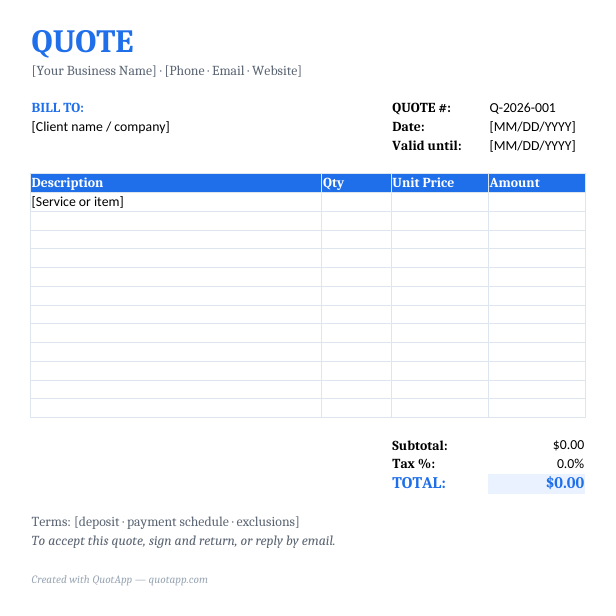
A Google Docs quote template is a document already laid out as a professional quote — header, client block, quote number and dates, itemized table, totals, terms and acceptance line — that you open in Google Docs, fill in from any device and download as a PDF. Download the quote and estimate versions below, then follow the steps to bring them into Google Drive, keep a reusable master and send a clean PDF.
⬇ Free download — no sign-up
- Quote Template (.docx) — Upload to Google Drive → Open with Google Docs
- Estimate Template (.docx for Google Docs) — Upload to Google Drive → Open with Google Docs
- Also available in Excel
Create this quote online — free Browse all templates
Which Google Docs quote template do you need?
| Variant | Use it when | What changes in the template |
|---|---|---|
| Quote template | Fixed price for a defined scope. | QUOTE heading, quote number, valid-until date, acceptance line. |
| Estimate template | Scope or conditions not final. | ESTIMATE heading and a note that the final cost may vary; same layout. |
| Google Sheets version | You want automatic totals. | Use the Excel template opened with Google Sheets — formulas calculate line amounts, subtotal and tax. |
Filled-out Google Docs quote example
This is what the template looks like completed for a real job — example of the Google Docs template filled in — move-out cleaning for a 2-bedroom apartment. Prices are illustrative US figures; swap in your own rates.
Prepared for Riley & Sons Property Management
| Description | Qty | Unit | Unit price | Amount |
|---|---|---|---|---|
| Move-out clean — kitchen, 1 bathroom, 2 bedrooms, living area (950 sq ft) | 950 | sq ft | $0.28 | $266.00 |
| Inside oven and refrigerator | 2 | appliance | $35.00 | $70.00 |
| Interior windows and tracks | 8 | window | $6.00 | $48.00 |
Example only. Shared with the client as a PDF; the editable Google Doc stays in the business's Drive.
Rebuild this example in the free quote generator and export it as a PDF in under a minute.
How to set up the template in Google Docs
- Download the .docx (quote or estimate version) from the box above.
- Upload it to Google Drive. In Drive, New → File upload, choose the file.
- Open it with Google Docs. Right-click the file → Open with → Google Docs. The layout, table and fonts convert; check that the line-item table fits the page width (drag the right border if needed).
- Save a native copy. File → Save as Google Docs. Name it something like “Quote – MASTER” and delete the uploaded .docx if you like.
- Add your business details and logo to the master: replace the bracketed placeholders, then Insert → Image → Upload from computer for the logo.
- For each job, make a copy. File → Make a copy, name it with the quote number and client (for example “Q-2026-014 Riley & Sons”), and fill it in. The master stays clean.
What’s in the template
| Section | What it holds |
|---|---|
| Heading | QUOTE or ESTIMATE |
| Business block | Name, address, phone, email, website (and your logo) |
| Client / details table | Bill-to; quote number, date, valid-until |
| Line-item table | Description, Qty, Unit Price, Amount |
| Totals | Subtotal, tax, total |
| Terms & notes | Deposit, payment schedule, exclusions, changes |
| Acceptance | Signature and date lines |
Filling in a quote
- Line items: one row per product, service or phase. To add a row, right-click the last row → Insert row below. Make the description specific enough to define the scope.
- Totals: Google Docs tables do not calculate. Work out the amounts and type them, or build the numbers in the Excel template opened in Google Sheets or in the free quote generator and copy them across.
- Dates: use the date the quote is sent and a valid-until date — 30 days is common; shorter if your material prices move fast.
- Terms: two to four short sentences. Long terms belong on a second page or in a proposal.
Sharing a draft vs sending the quote
Google Docs makes it easy to share a draft with a partner or office manager: Share → add their email → Editor or Commenter. They can suggest changes (Suggesting mode) and leave comments without overwriting your numbers. When it is final, send the client a PDF — File → Download → PDF Document — not the editable link. A PDF looks the same on every device and cannot be changed.
Using Google Sheets instead
If you want the totals to calculate, use the Excel version in Google Sheets: upload the .xlsx, Open with → Google Sheets, and File → Save as Google Sheets. Amount, subtotal and tax formulas work unchanged. Many businesses keep the price list and quantities in Sheets and the client-facing layout in Docs.
Quote vs estimate version
The estimate version is headed ESTIMATE and states that the final cost may vary and that changes above 10% will be approved in writing. Send it when the scope is not settled; send the quote version when you can commit to the price. The distinction is covered in quote vs estimate.
Google Docs, Word, Excel or the generator?
| Option | Best for | Trade-off |
|---|---|---|
| Google Docs template | Editing from any device, sharing drafts, no software to buy | Totals typed by hand |
| Word template | Offline work and fine layout control | Needs Word or a compatible app |
| Excel / Google Sheets template | Automatic totals and tax | Spreadsheet layout |
| Quote generator | A finished PDF in a minute | No saved document yet |
If you quote one trade often, start from an industry version with line items and a worked example — for instance cleaning, painting, landscaping, handyman or janitorial — and open its .docx in Google Docs the same way.
Common mistakes with Google Docs quotes
- Sharing the edit link with the client. They can change it, and you lose a fixed record. Send a PDF.
- Editing the master. Always File → Make a copy first.
- Table overflowing the page after conversion. Check the right edge and drag the table border in.
- Leaving placeholders. Use Edit → Find (Ctrl/Cmd+F) for ”[” before downloading.
- Forgetting the valid-until date. It turns an offer into an open-ended commitment.
Once the client accepts, follow up with the next steps — deposit, scheduling and the invoice; see how to follow up on a quote and how to write a quote for a job.
Frequently asked questions
Does Google Docs have a quote template?
Google Docs' built-in template gallery is limited and varies by account. You can upload our .docx and open it in Google Docs, then save it as your own reusable template.
How do I open the template in Google Docs?
Download the .docx, go to drive.google.com, click New → File upload, then right-click the file → Open with → Google Docs. Use File → Save as Google Docs to keep a native copy you can edit and duplicate.
Can Google Docs calculate totals?
Not in a document table. Type the totals, or use the Excel template opened in Google Sheets, which calculates line amounts, subtotal and tax automatically. The free online quote generator also calculates as you type.
How do I add my logo in Google Docs?
Click where you want it in the header area, Insert → Image → Upload from computer, then set it to In line with text and drag the corner to resize. Save it in your master copy so it appears on every quote.
How do I send the quote from Google Docs?
File → Download → PDF Document (.pdf), then attach the PDF to an email. You can also File → Email → Email this file and choose PDF. Avoid sharing the editable Doc link with clients.
Can I use it on my phone?
Yes. The Google Docs app on iOS and Android opens and edits the file; table editing is easier on a tablet or computer, but small changes and sending are fine from a phone.
Related tools and templates
- Quote & estimate template for Excel / Google Sheets — automatic totals
- Quote & estimate template for Word
- Free quote generator — works on any device
- How to write a quote for a job
- How to follow up on a quote
More quote templates
Skip the template. Build it online.
The free QuotApp quote maker fills in the math, formats everything professionally, and gives you a ready-to-send PDF in under a minute.
Create a free quote now